Use · Schools & campuses
Push-to-talk for school and campus staff.
The office, security, transport, facilities and the duty team each get a channel, so the right people hear the right call. It runs on staff phones and on laptops in the browser.
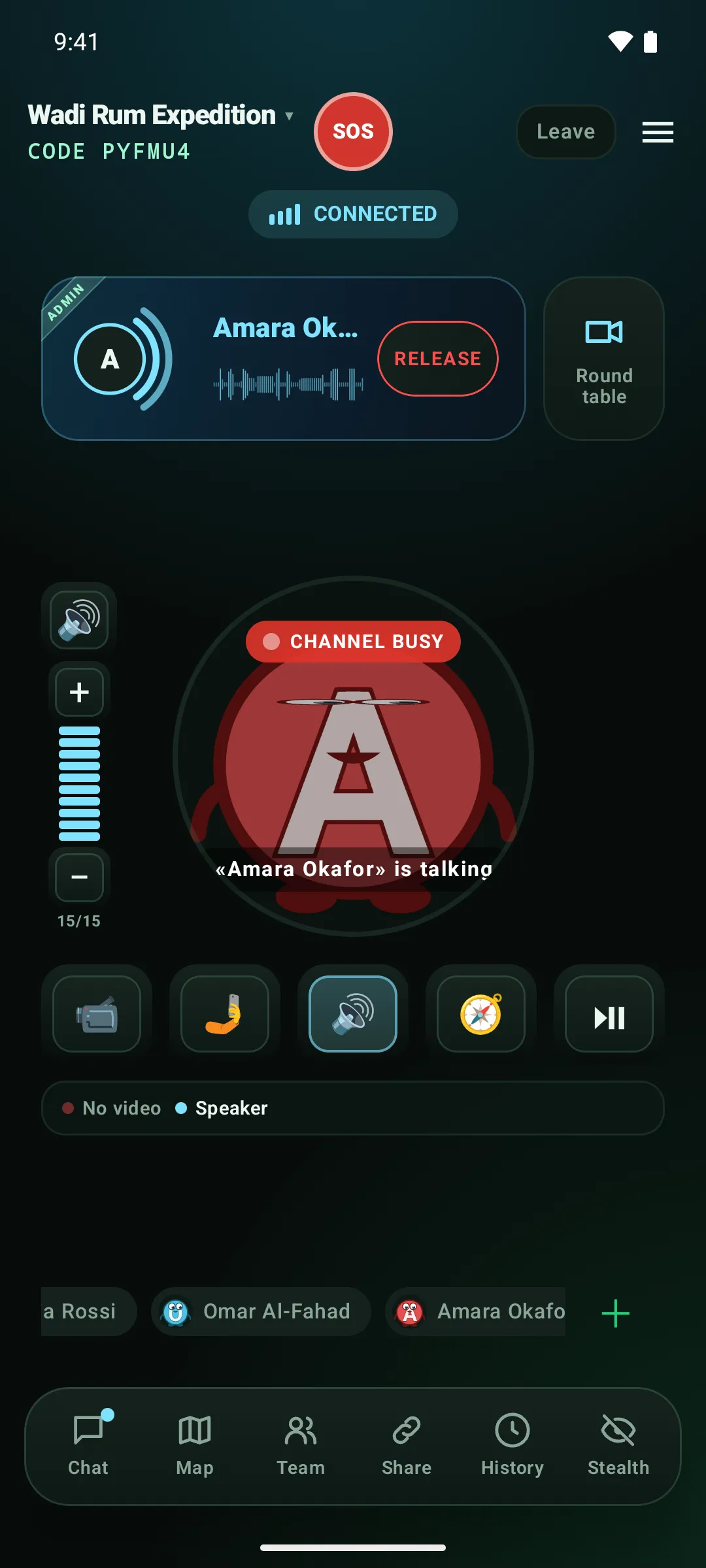
Channels for every team on campus
- Front office, security, transport, facilities, the nurse's room, the duty team.
- Hold to talk to a whole team, or hold a colleague to talk to them alone.
- Ring someone into a channel with a reason.
- History keeps every transmission, so nothing said at the gate is lost.
Setting up for a new term
Make the staff channels
Front office, security, transport, facilities, the nurse's room and the duty team. Make each one members-only, for staff only.
Share the codes at the staff briefing
Each channel has a 6-character code, a link and a QR. Staff join on Android or in any browser.
Set up the office laptops
The front office runs the channels in the browser, as a full workspace on the screen.
Agree how you talk
Short calls, name first, one channel per job. A shared habit keeps the channel clear on a busy morning.
Make a channel per event
Sports day, open evening or a trip each get their own channel, so the everyday ones stay quiet.
A school day on the channels
Before the gates open, the transport lead tells the Transport channel that one bus is running late. The front office hears it on the laptop and lets the duty team know on their channel.
At break, a member of staff on the field calls the nurse's room. The nurse answers from the corridor with the volume key, and the rest of the school never hears the call. Facilities hear about a broken window on their own channel and send someone over.
At home time, staff at the gate and in the car park share their position on the team map for the busy half hour, then switch it off again. A teacher who was in class all afternoon gets a "while you were away" recap of what was said.
Events and trips
- Make a channel for sports day or a school trip and share its code with the staff on duty.
- A private team map, off by default, shows the staff who choose to share.
- On a trip with no signal, Android phones near each other keep talking over Bluetooth and Wi-Fi.
- Turn a channel into a timed video meeting for a quick staff briefing, then go back to push-to-talk.
Who it is for
TapHAIL is rated 16+. On a school campus it is for staff and adult students, not for younger pupils.
SOS sits in the same place on every screen and, where SOS is live (Kerala today), alerts the channel and the person's emergency contact with their location. TapHAIL keeps your crew talking. It does not replace emergency services: in an emergency, call your local emergency number.
Questions
Can school staff use phones as walkie talkies?
Yes. Give each team a TapHAIL channel; staff hold one button to talk, on Android or in any browser.
Can students use TapHAIL?
TapHAIL is rated 16+, so on a campus it is for staff and adult students.
Does it work for school trips?
Yes. Make a channel for the trip; with no signal, Android phones near each other keep talking.
Can we keep the channels to staff only?
Yes. Make each channel members-only, so it is for staff only.
Can the front office use it on a computer?
Yes. The full app runs in a browser on laptops and desktops, on the same channels as the staff phones.
What happens when a member of staff presses SOS?
Where SOS is live (Kerala today), the channel and their emergency contact are alerted with their location, and Silent SOS works when they cannot speak. Elsewhere the SOS button puts the emergency number one tap away. TapHAIL does not replace emergency services.
Is TapHAIL free?
Yes. The app is free on Google Play, as a direct download and in the browser, with no ads and nothing locked.